Windows x64 · 1.2.4 Beta

Understand code. Make systems visible.

BigPadIDE brings a native Windows editor together with semantic C# analysis, debugging, architecture diagrams and optional local AI. Piece-table editing keeps large text and binary files manageable.

Free public beta
  • Native Windows app
  • Local processing
  • No developer telemetry
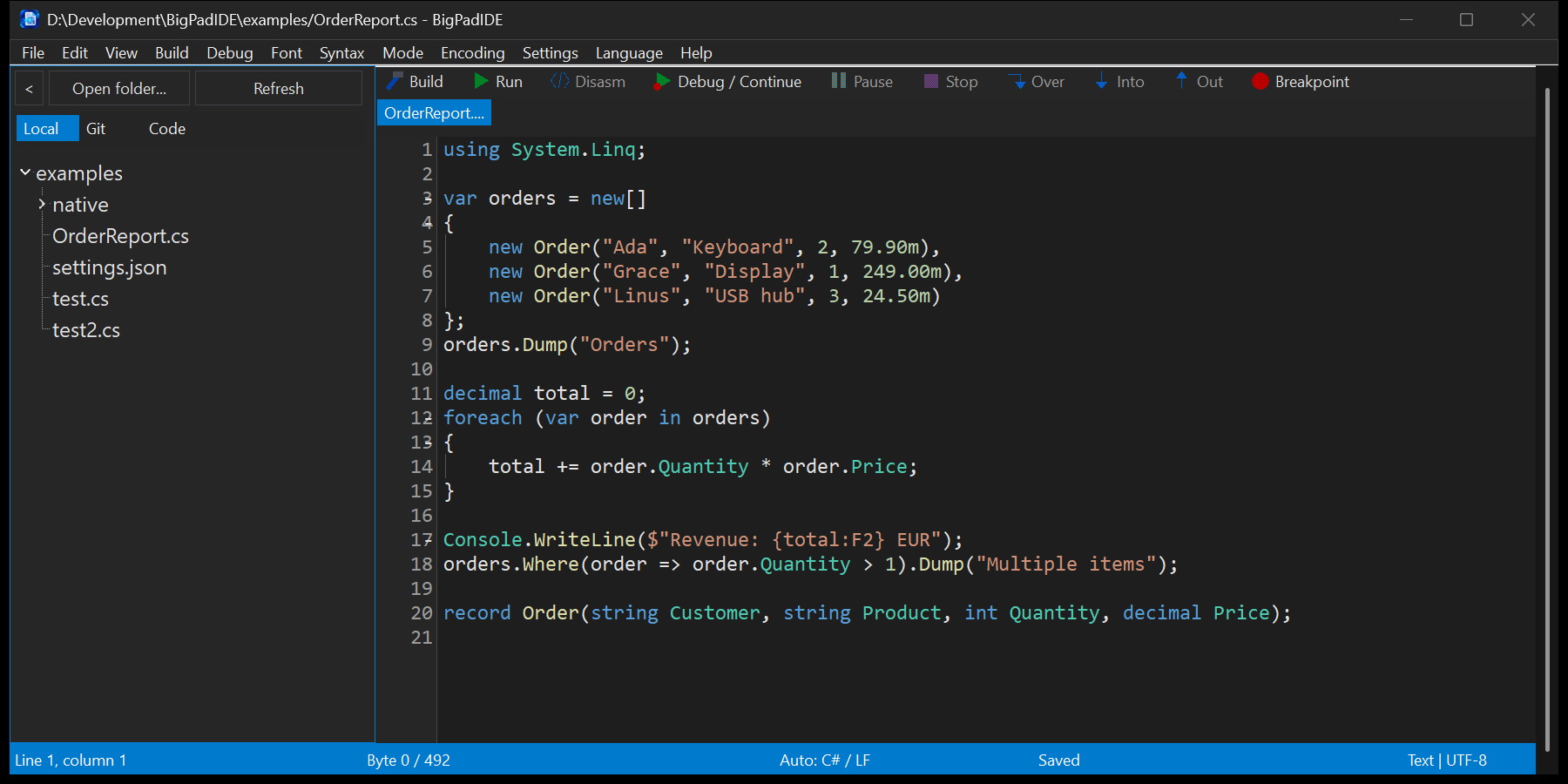
BigPadIDE — OrderReport.cs
Native workspace with C# editor

One workspace

From source code to system overview.

01

Large files, text and hex

Windowed file access, undo/redo, safe saving and optional full-RAM buffers.

02

Semantic C# assistance

Roslyn completion, references, definitions and gray suggestions accepted with Tab.

03

Native development and debugging

C#, C/C++ and ASM with toolset profiles, runtime value tips and editable paused variables.

04

Architecture and diagrams

Editable 2D analysis, UML, flows and sequences with drag-and-drop, mouse drawing and PlantUML export.

05

Local AI, without a cloud requirement

A native chat window and optional code suggestions using llama.cpp and your own GGUF models.

06

Git, binaries and navigation

Diffs, branches and conflicts; IL/C# preview, disassembly and Explorer details.

The tools behind your daily workflow

Explore how the editor, compiler tools, diagrams and local AI work together. Open a topic for details.

Text editing and large files

Work in ordinary text files or inspect large data without loading the entire original into RAM.

  • Windowed piece-table access or an optional full-RAM mode, with undo/redo and safe saving.
  • Tabs and nested split views; open files from Windows Explorer by drag and drop.
  • UTF-8, UTF-8 BOM and Windows ANSI; find, replace, go to line or byte offset, quick open and project-wide regular-expression search.
Semantic C# assistance

Use the compiler context to understand symbols and edit with more confidence.

  • Roslyn completion includes framework members, inferred types and extension methods. Gray suggestions can be accepted with Tab or dismissed with Esc.
  • Navigate to definitions and references, use Ctrl+click and inspect the explorer code map.
  • Preview rename and code actions before applying them. Choose the active project in multi-project solutions; unresolved references affect results.
Build, output and debugging

Go from a single C# file or project to a running program and inspect what happens.

  • Build diagnostics navigate to source; separate build output, program output and structured Dump() result tables.
  • Launch profiles hold arguments, working directories and input encoding; send line-based input to a running program.
  • Breakpoints, conditions, stepping, call stacks, watches, expandable objects and hover values. Supported writable paused values can be edited through the debug adapter.
C, C++ and assembly

Manage native compiler profiles alongside your C# tools.

  • Configure GCC/MinGW, MSVC or Intel toolchains, includes, libraries, compiler options and additional tool paths.
  • Build native projects and mixed C++/assembly examples; inspect native Windows programs through CodeLLDB when matching symbols are available.
  • Cross-toolchains support ARM/Thumb and ARM64 workflows. Their output is not automatically executable on the Windows host.
Architecture from saved code

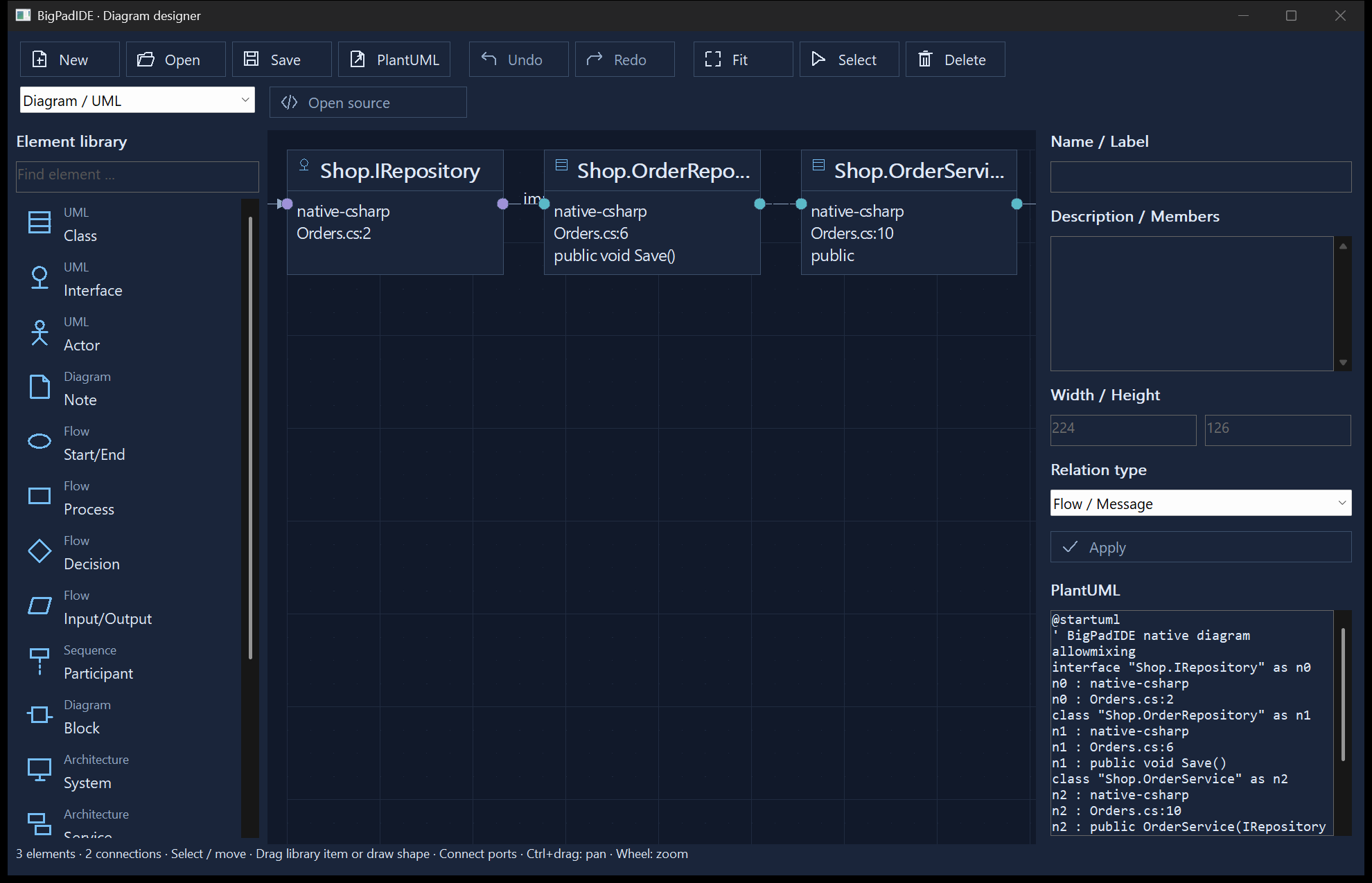
Turn an existing source folder into an editable 2D view and follow relationships back into implementation.

  • C# project analysis uses MSBuild/Roslyn when available. Other parsers and unresolved contexts can use heuristic relationships.
  • Inspect types and dependencies, zoom and fit the graph, then open an analyzed source location in the editor.
  • Analysis reads saved files. It does not discover a complete runtime or infrastructure landscape; document external systems and deployment relationships yourself.
Visual diagram design and export

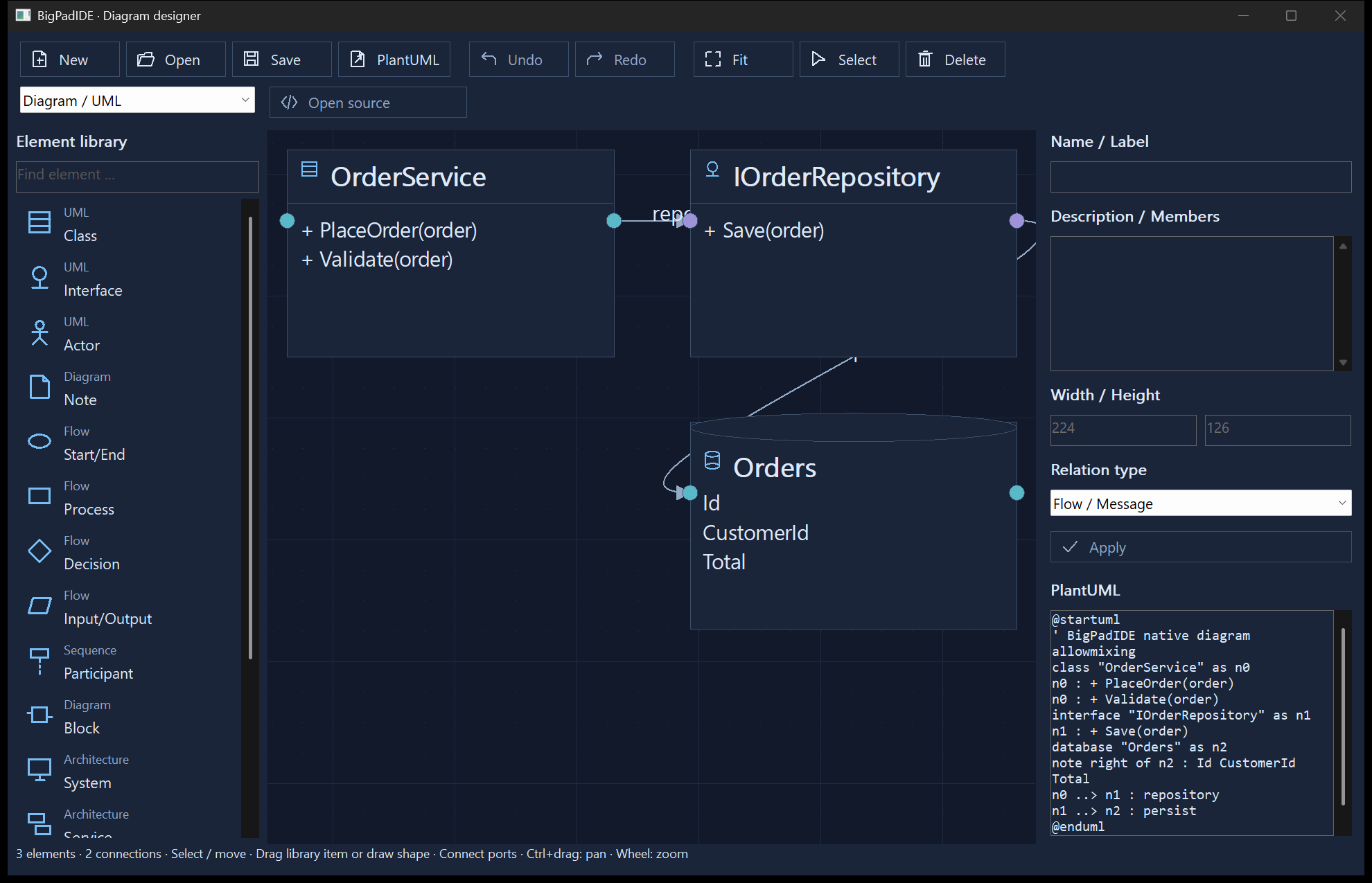
Create diagrams directly in the native application using an element library, canvas and properties panel.

  • Drag elements onto the canvas, draw with the mouse, move and resize blocks, connect ports and edit labels and relationships.
  • Model UML classes/interfaces, flowcharts, sequence participants, systems, services, databases and manually documented infrastructure.
  • Save editable .bpdiagram documents, undo local changes and export PlantUML text for version control. XMI interchange and hierarchical C4 navigation are not implemented.
Optional local coding AI and chat

Use a local llama.cpp executable and GGUF model for suggestions and a separate native chat window.

  • No LM Studio service is required. Configure an existing runner/model or select the optional runtime and model downloads in EXE Setup.
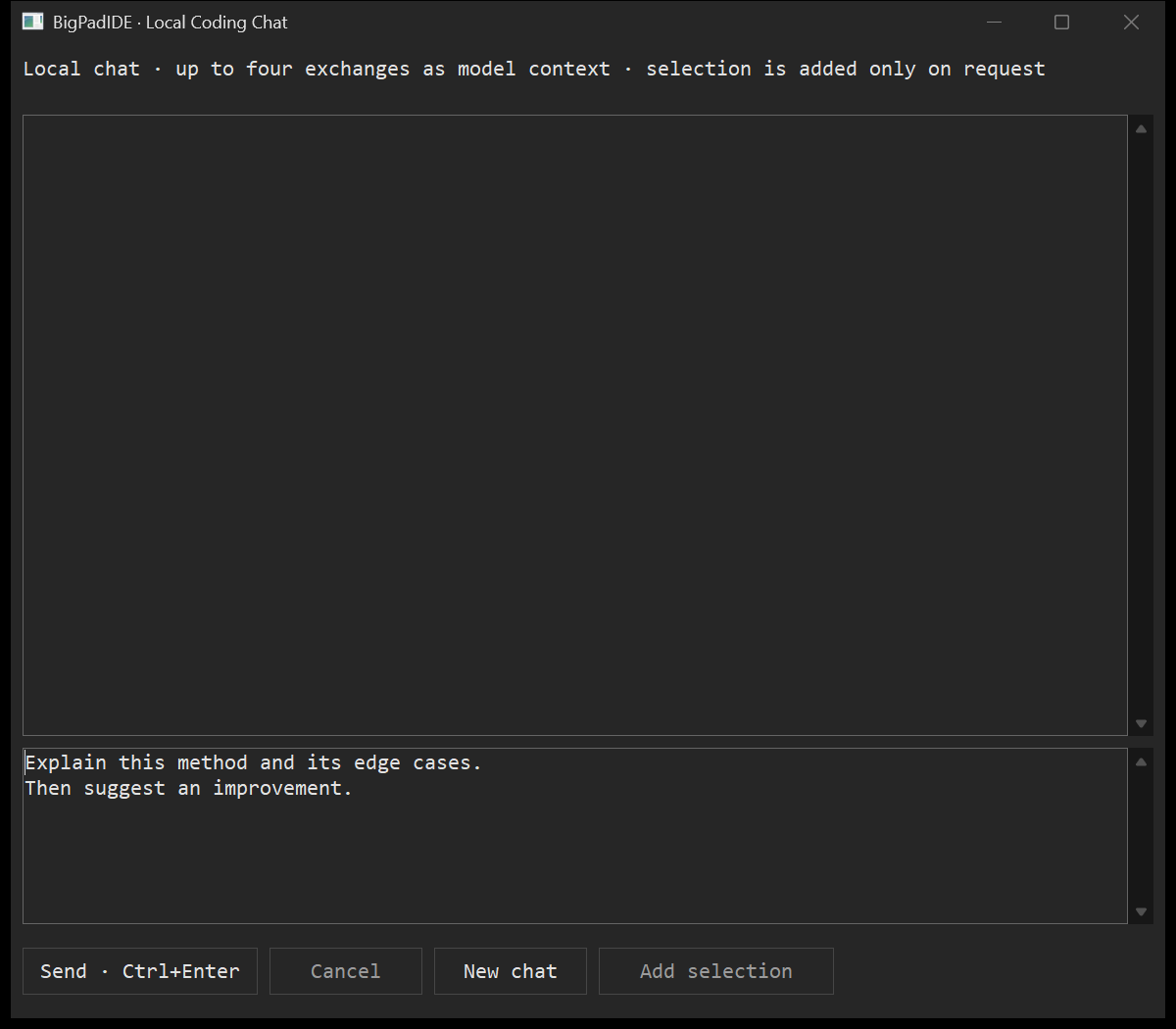
  • Request a local C# inline suggestion with Ctrl+Alt+Space and accept it with Tab. Chat supports multiline prompts, cancellation and explicit inclusion of selected code.
  • Prompts are processed by your chosen local runner. Model quality, latency and memory requirements depend on your hardware and model; review suggestions before applying them.
Git changes and conflicts

Review repository work without leaving the editor. A Git installation is required.

  • View staged, unstaged and untracked files; inspect diffs and stage or discard individual hunks.
  • Commit locally, manage branches and request fetch, fast-forward pull or push through the configured remote.
  • Resolve conflicts using base, incoming and local versions. Network operations use your Git credentials and contact the selected remote.
Hex, disassembly and images

Inspect the same file through the view appropriate to its contents.

  • Hex tools provide byte-pattern search, numeric interpretation and range export. PE/ELF analysis includes sections, symbols and branch targets.
  • Preview managed DLLs as IL or reconstructed C#, with syntax colors and Ctrl+mouse-wheel font zoom. Decompilation does not restore the original source perfectly.
  • View PNG, JPEG, BMP, GIF and TIFF; inspect pixel values, GIF frames and TIFF pages. Explorer context actions include assembly analysis, hex view and Reveal in Explorer.
Workspace, recovery and accessibility

Adapt the interface to the task and return to your working context later.

  • Choose modern or classic appearance and Light, Dark, Sepia or Midnight palettes; personalize fonts and colors in distinct interface areas.
  • Resize text with Ctrl+mouse wheel, adjust panels and switch Explorer between tree, list and details showing file size and modification time.
  • Session restoration remembers open views; crash recovery retains unsaved work. Export settings as JSON for another machine, without transferring license or trial state.

Inside the application

Original captures from the current English interface. Click to enlarge.
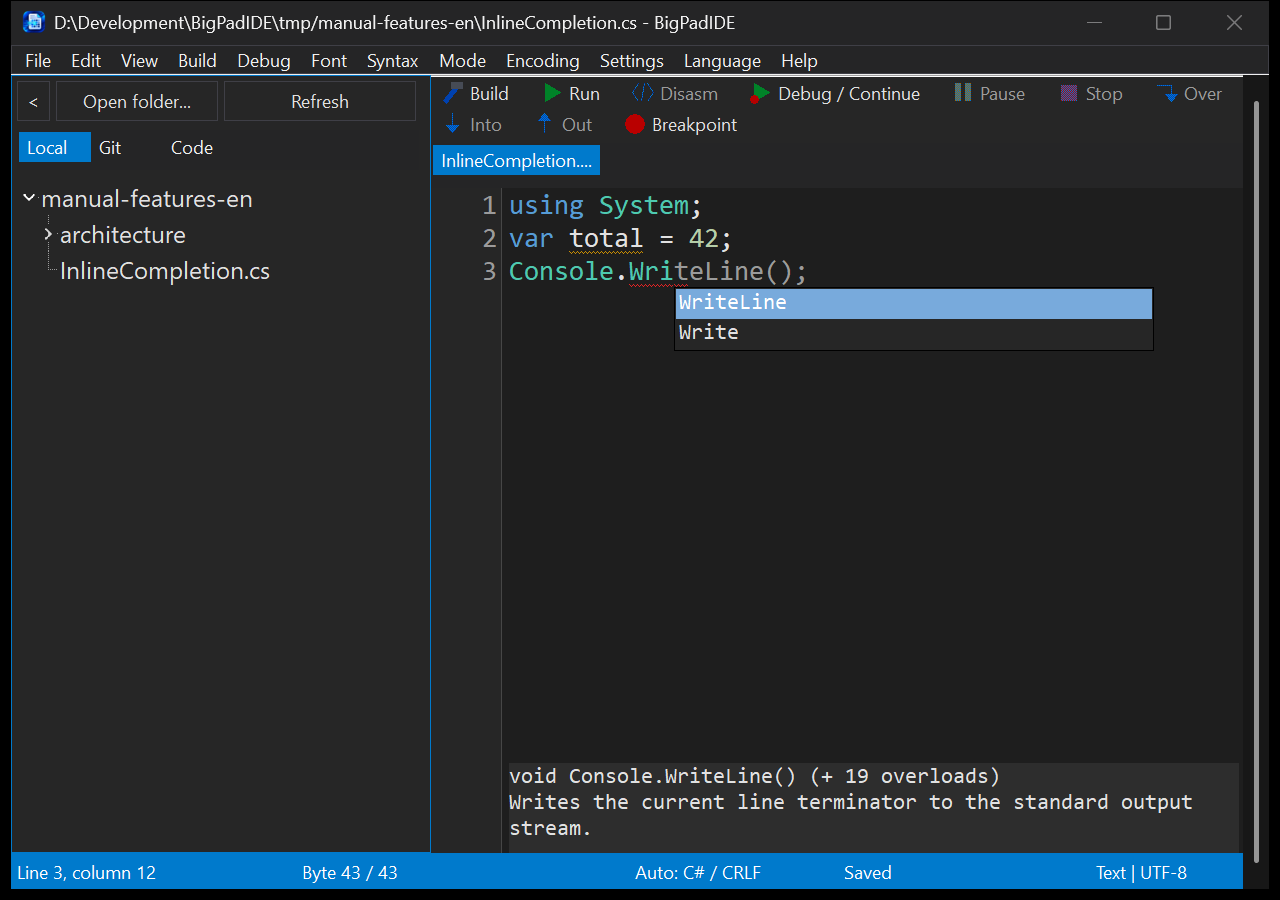
Completion with Tab suggestions
Native diagram designer
Architecture from saved code
Local chat with multiline prompts

Offline and bilingual

Manuals

28 chapters with language-specific screenshots, navigation and practical workflows.

The manuals describe version 1.2.4. Their trial and purchase notes predate the free Store beta and do not apply to this beta offer.

A practical path through a new project

Open and orient yourself

Open your project folder, choose the active C# project or native compiler profile, and inspect files, symbols and build diagnostics.

Understand and change

Follow references, generate an architecture view or draw a diagram. Edit with semantic completion and use local AI when you want an additional suggestion.

Verify and document

Build, debug and review the Git diff. Save your diagram and export PlantUML; use the bilingual manuals for the exact commands and limitations.

Installation, availability and common questions

What do I need on Windows?

The current package targets Windows 10/11 x64. EXE Setup includes a private .NET SDK, C# helper, debug adapters, offline help, both PDF manuals and third-party notices. Native development also needs the matching compiler/toolchain. Basic editing and diagrams do not require a local AI model.

What is optional in Setup?

Native toolchains and local AI are separate selections. The llama.cpp CPU runtime is about 25 MB; the suggested Qwen coding model is about 1.12 GB. Downloads require internet access and are checked against fixed hashes. Store packages do not execute these installer download tasks; configure external tools and models in the app.

Can I use my own GGUF model?

Yes. Select your llama-completion executable and model file in the common tool paths. Keep the runner and its required DLLs together. The integrated runner supports selected FIM/instruct templates; arbitrary GGUF files are not guaranteed to produce suitable coding suggestions.

Are my files sent to an AI cloud?

The integrated AI feature invokes the configured local runner. Inline completion includes source context; chat includes your prompt and recent conversation, and selected code when you explicitly add it. Git remotes, package restore and optional downloads can contact external providers. See the privacy policy for those distinctions.

How do I obtain BigPadIDE?

BigPadIDE 1.2.4 has been submitted to Microsoft Store as a free public beta. It will be available after Store approval and publication. Feedback and suggestions are welcome. The development repository is private; there is no public source download.

Where can I report a problem?

Use the support form. Include your application version, Windows version, expected result and steps to reproduce the issue. Do not send license keys, passwords, private source code or confidential documents.

Open the support form

Install and get started

EXE Setup includes the IDE, a private .NET SDK, debuggers, offline help, both PDF manuals and third-party notices. llama.cpp (about 25 MB) and the Qwen coding model (about 1.12 GB) are separate optional downloads. Custom tool/model paths remain supported.

The Microsoft Store beta is free to use, with no 14-day trial limit. BigPadIDE is under active development; bugs and changes are possible. A future stable release may be offered as a paid product. Voluntary sponsorship supports continued development and is not required to use the beta. BigPadIDE is privately developed; its source code is not publicly available. Third-party components and models retain their own licenses. Their notices are available under Help → Licenses and third-party components.

Analysis uses saved files; non-C# relationships can be heuristic. Infrastructure is documented manually. PlantUML exports diagrams; XMI and C4 drill-down are not implemented yet.

Version 1.2.4 Beta, 14 November 2026. Submitted for Microsoft Store review; publication is still pending. The free beta offer applies to the Microsoft Store version.